Local or cloud AI: when to keep client data on your computer
Every request to a cloud model sends text to someone else's servers. Most of the time that is fine, but not always. This guide shows exactly what leaves your computer, when a local model is the better choice, and where automatic routing helps and where it does not.
What leaves your computer with a remote agent
Claude Code, Codex and Gemini CLI run as programs on your computer, but the model that does the thinking runs on the provider's servers. Each time the agent calls that model, it sends text. In practice, that text usually contains:
- Your message, word for word.
- The context the tool adds. In Pandore, a client conversation gives the agent what it needs to be useful: the client's name, company and contact details, your day rate, client notes and memory, recent interactions, and, inside a project, its brief, its confirmed memory items and its open tasks.
- The conversation history, so the model can follow the thread.
- Every file the agent opens. When an agent reads a contract in your project folder, the content of that contract goes to the model.
- Tool results: command output, web pages it fetched, and data from connectors such as your mailbox or Stripe, if you connected them.
None of this is hidden behaviour. It is how cloud models work: they cannot answer about text they have not received. So the useful question is not "does data leave?" but "which data leaves, and would my client be comfortable with it?"
Providers' data terms differ from one type of account to another. Read the ones that apply to the account you actually use, not a summary of someone else's.
What stays on your computer with a local model
A local model is a file on your disk. In Pandore, it is a GGUF file run by llama.cpp. Pandore starts it as a small server that only listens on your own machine, sends it the prompt, and reads the answer back. The prompt, the context and the answer never leave the computer. Once the model is downloaded, it works offline.
Pandore itself has no account and no server: your workspace is one SQLite file on your disk. In local mode, the whole chain stays on your computer.
That privacy has a price, which we will come back to: speed and quality depend on your memory and processor, and a model small enough to run on a laptop is less capable than the largest cloud models.
A decision grid by type of data and task
Two questions decide most cases. How sensitive is the data? And does the task need tools, or a lot of reasoning?
| Data | Example task | Where to run it |
|---|---|---|
| Public text or your own non-sensitive writing | Rewrite a post, summarize a public article | Either. Local costs nothing per request |
| Client and project context, no secrets | Draft a status update, plan next week | Remote is usually fine if your contract allows it |
| Personal data about people (health, salaries, ID numbers) | Summarize an HR note, check a payslip | Local |
| Confidential documents under an NDA | Pull the key terms out of a contract | Local, unless the client agreed to cloud tools |
| Banking details, passwords, access keys | Anything | Not in a prompt at all |
| Files in a project folder | Review a repository, edit documents | Remote agent, with the narrowest permission that works |
| Long documents, deep analysis | Compare three long reports | Remote, after removing what should not leave |
A few habits make the grid easier to apply:
- Read your client contract. Some NDAs and data processing agreements restrict which third parties can process client material. If you handle personal data about people in the EU, data protection rules such as the GDPR apply to the tools you choose. This is not legal advice; it is a reminder to check.
- Anonymize before sending. "Client A wants to cut the budget by a third" gives a remote model everything it needs for a reply plan, without the client's name.
- Give agents the narrowest permission. In Pandore's settings, agents can be limited to reading files, allowed to change files, or allowed to run commands. Web search has its own switch. Pick the lowest level the task needs.
How automatic routing works in Pandore
In Settings › AI you choose where Pandore works: remote models, local models, or the automatic mode, which uses both. In automatic mode, Pandore applies a few rules to each chat message before anything is sent. The rules run on your computer and look at the words of your request; no model is asked to decide.
The rules apply in this order:
- Requests that need tools go to the remote agent. That covers web search, work inside the project folder, and messages whose words ask for an action, such as write, create, edit, update, delete, run, email or calendar.
- Requests that look sensitive stay local. Words such as confidential, private, secret, password, bank, IBAN, medical, health, salary, invoice, contract, accounting, client data or personal data keep the message on your computer. French equivalents work too.
- Complex requests go remote. Words like strategy, architecture, legal or deep research, or a message longer than about 1,600 characters, send the request to the remote agent.
- Everything else stays local. "Rewrite this paragraph more clearly" is answered on your computer.
Two more rules matter. If no local model is installed, everything goes to the remote agent. And attachments change the route: a local model cannot see images or read files such as Word or Excel documents, so a message with one of those attached goes to the remote agent. Text files and PDFs are fine; the local model receives their extracted text. The guide on attaching files to an AI chat covers what happens to those files.
The limits of automatic routing
The rules read words, not meaning. Know their blind spots before you trust them with client data.
- Action words win over sensitive words. "Write a summary of this confidential contract" contains write, which is checked first, so it goes to the remote agent.
- Sensitive content without a sensitive word is treated like anything else. Paste three pages of meeting notes full of names but free of the listed words, and the length alone sends them to the remote agent.
- The router judges your message, not the context. In a client conversation, a message routed to the remote agent carries the client context described above with it.
- Agent work in the folder and Missions are remote. An agent that reads and edits files needs tools, and Missions run with Claude Code.
So treat automatic mode as a way to save money and keep everyday requests local, not as a privacy guarantee. When a piece of work must stay on your computer, do not rely on keywords: switch Settings › AI to local mode while you work on it, then switch back.
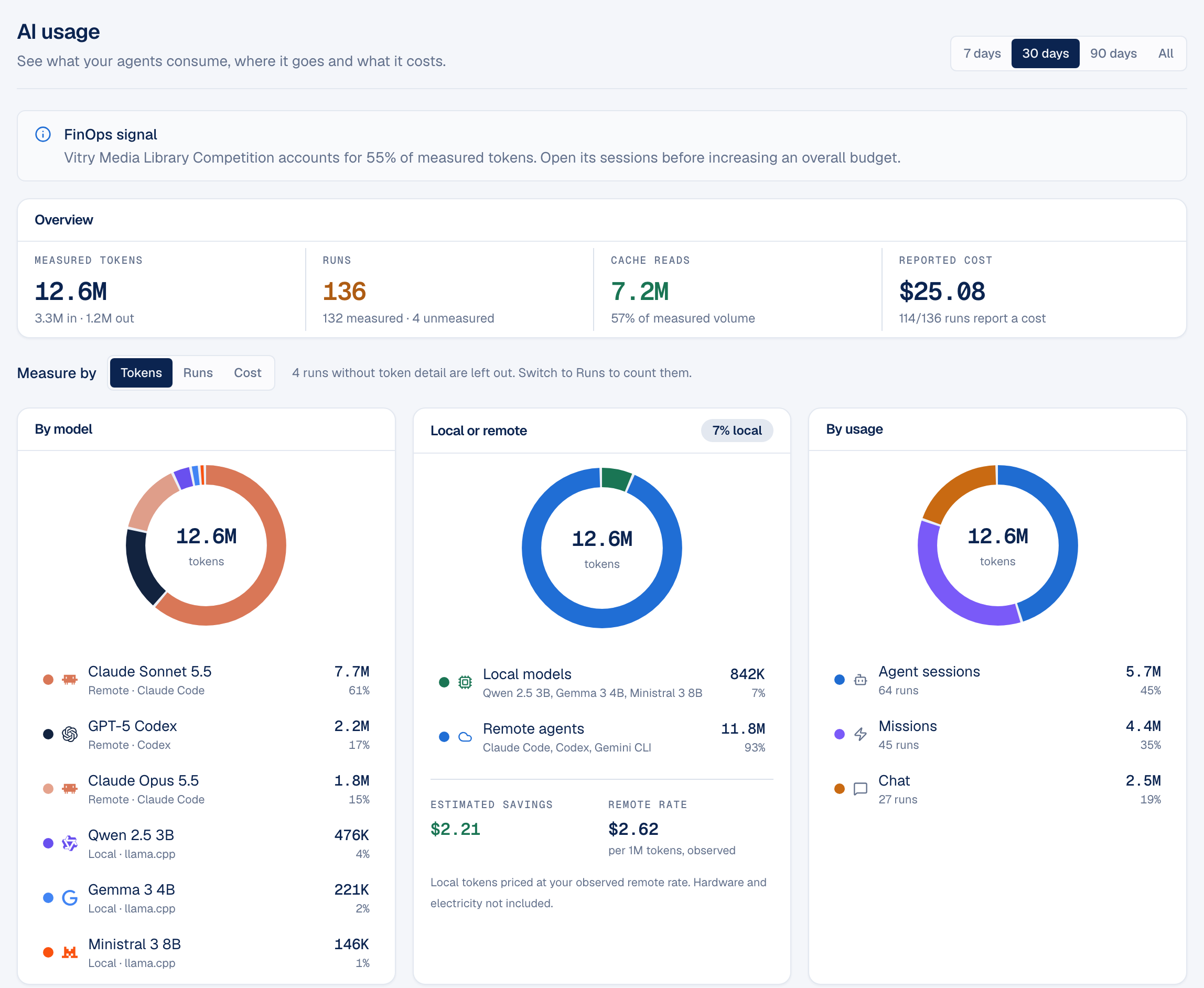
To check afterwards, open the AI usage dashboard. The Local or remote chart shows the split for the period, and a panel lists local and remote tokens project by project, so a client project that should have stayed local and did not is easy to spot.
What local models can't do
Be clear about what you give up. In Pandore today, a local model:
- Answers, but does not act. It works on text in the chat. It does not edit project files, run commands, search the web or use connectors.
- Does not see images, and does not read Word or Excel files. Export a spreadsheet to CSV, or a document to PDF or plain text, if you want a local model to read it.
- Reads a limited amount. Pandore passes it about 24,000 characters per attached file and 60,000 for all the files of a message; the rest is cut.
- Writes a limited amount. Each local answer is capped at 2,048 tokens: enough for a long email or a page of notes, not for a full report in one go.
- Depends on your hardware. A small model on a laptop is good at rewriting, summarizing, extracting and translating. It is weaker at long chains of reasoning, niche facts and keeping a long document consistent.
If you have not tried one yet, the step-by-step guide to running a local LLM on your Mac gets a model answering in a few minutes, and the local models page lists what Pandore offers.
Keep personal and professional apart
Privacy is not only about clients. Your own medical appointments, family paperwork and personal budget deserve the same care, and mixing them with client work makes mistakes more likely.
Pandore has two spaces. The Personal space has projects, tasks, a calendar, documents, agents and Missions, but no clients and no finances. The Professional space adds clients, the deals pipeline, time entries, invoices, expenses and the cash forecast. A personal Mission cannot read professional data, and the reverse is true.
A simple way to use this:
- Keep anything about your own life in the Personal space, even when it feels small.
- Before a session on sensitive personal paperwork, switch Settings › AI to local mode.
- In the AI usage dashboard, look at each space on its own; budgets can also be set per space, per client or per project.