How to delegate a goal to an AI agent, and keep the decision
Asking an AI agent for an answer is easy. Handing it a whole piece of work is harder, because you want to see the plan before anything happens. This guide walks through a Mission in Pandore, from one sentence to reviewed deliverables.
What a Mission is
A chat waits for prompts. A Mission starts from an outcome, such as "prepare a priced proposal for this client" or "turn my app idea into a real project". Pandore turns that goal into a plan, has the work done step by step, reviews the result, and keeps the deliverables.
Two rules make it safe to delegate:
- Nothing runs before you approve the plan. You see each step, what it will read and what it will write.
- Sensitive actions need a precise approval. Moving a deal to another stage, for example, waits for your explicit yes.
Missions currently run with Claude Code, using your own account.
Step 1: Describe the goal
Open Missions in the sidebar and describe what you want in one sentence. The Mission is created in the space you are in, Personal or Professional, and reads only that space.
Two examples work well to start:
- In Personal: "Turn my idea for a recipe-sharing app into a project with a first version and a task list."
- In Professional: from a client with an open deal, use the proposal shortcut. Pandore fills in the goal for you.
Step 2: Answer what is missing
If the Mission needs information it cannot find, it asks before planning. For a proposal, that may be which deal to use or your day rate.
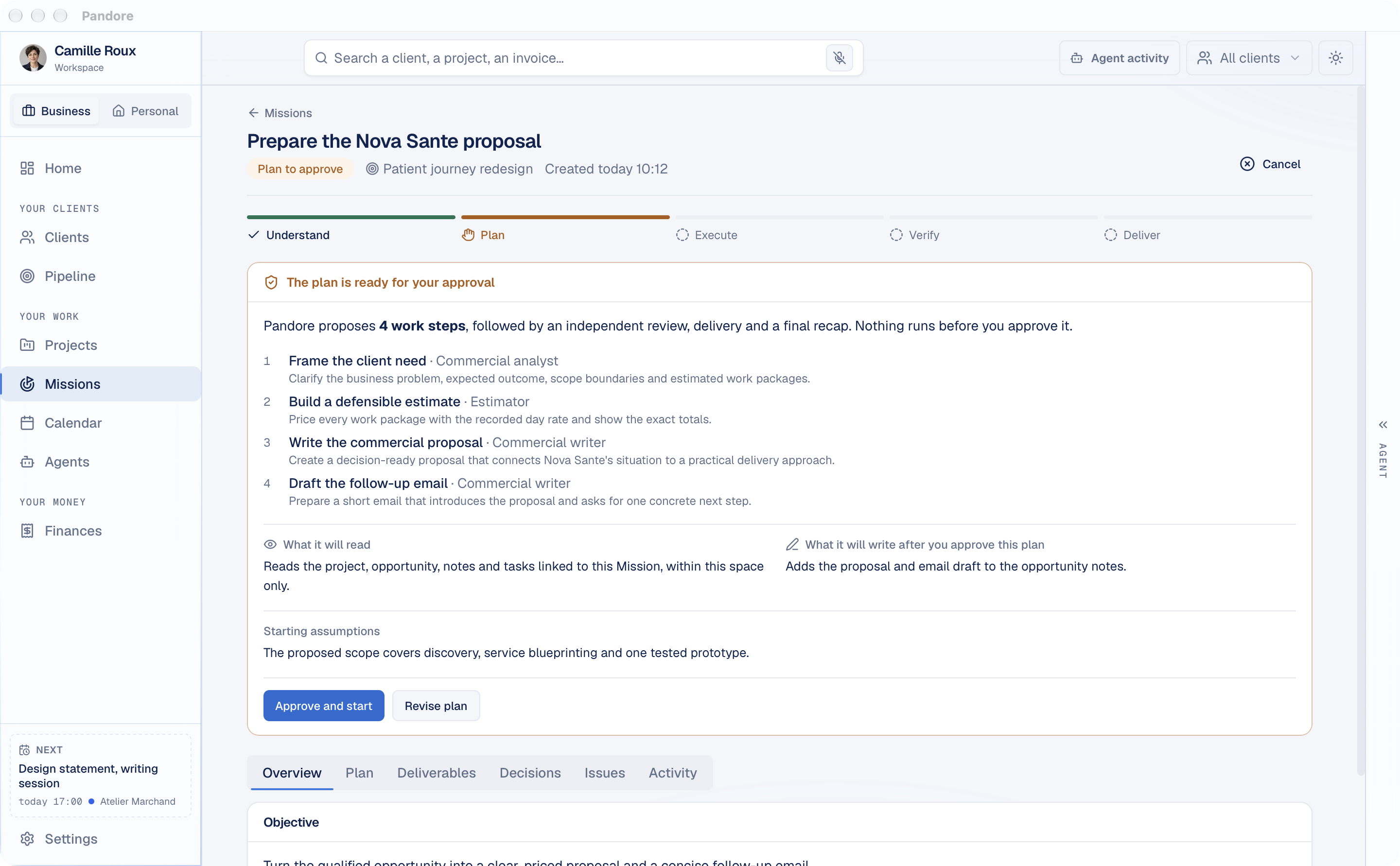
Step 3: Review the plan
The plan appears with:
- The work steps, each with the role that will carry it out, such as Commercial analyst or Estimator.
- What it will read, for example the project, the deal, its notes and tasks, within this space only.
- What it will write after you approve, for example adding the proposal and an email draft to the deal's notes.
- The starting assumptions, so you can correct a wrong premise before any work is done.
Click Approve and start if it looks right, or Revise plan to explain what to change.
Step 4: Follow the work
The Mission moves through five phases: Understand, Plan, Execute, Verify and Deliver. Each step's result is checked by an independent review, and the Mission corrects what does not pass, within a limit.
You can pause, resume or cancel at any time. A spending cap protects you: when the Mission reaches it, it pauses and waits for you to decide whether to continue.
Step 5: Collect the deliverables
When the Mission ends, everything stays in it:
- Deliverables: the documents it produced, such as the proposal and the email draft.
- Decisions and issues: what was decided along the way, and what still needs your attention.
- Activity: the full history of the run, step by step.
For a proposal, the pricing is calculated by Pandore from your day rate and the estimated days, not invented by the model, so the totals add up.