How to run several AI agents on one project
One AI agent at a time is fine for a question. For work that needs several angles, such as a draft, a review and a check of the figures, you want more than one. This guide shows how to call several agents in one message so they work as a team, when to run them in parallel instead, and how to keep them out of each other's files.
In turn or in parallel: what it changes
There are two ways to put several AI agents on the same material. In turn, each one reads what the previous one wrote, like a file passed from colleague to colleague. In parallel, they all start at the same moment and cannot see each other, like two colleagues handed the same file with different briefs.
Three properties follow, whatever tool you use:
- Independence. Agents working at the same time cannot build on each other's answers. That is useful when you want independent opinions, and a problem when one step needs the result of another.
- Shared ground. In parallel, agents in the same folder can step on each other's files. In turn, they cannot.
- Separate usage. Each agent reads the context on its own. Three agents are three runs, each with its own tokens.
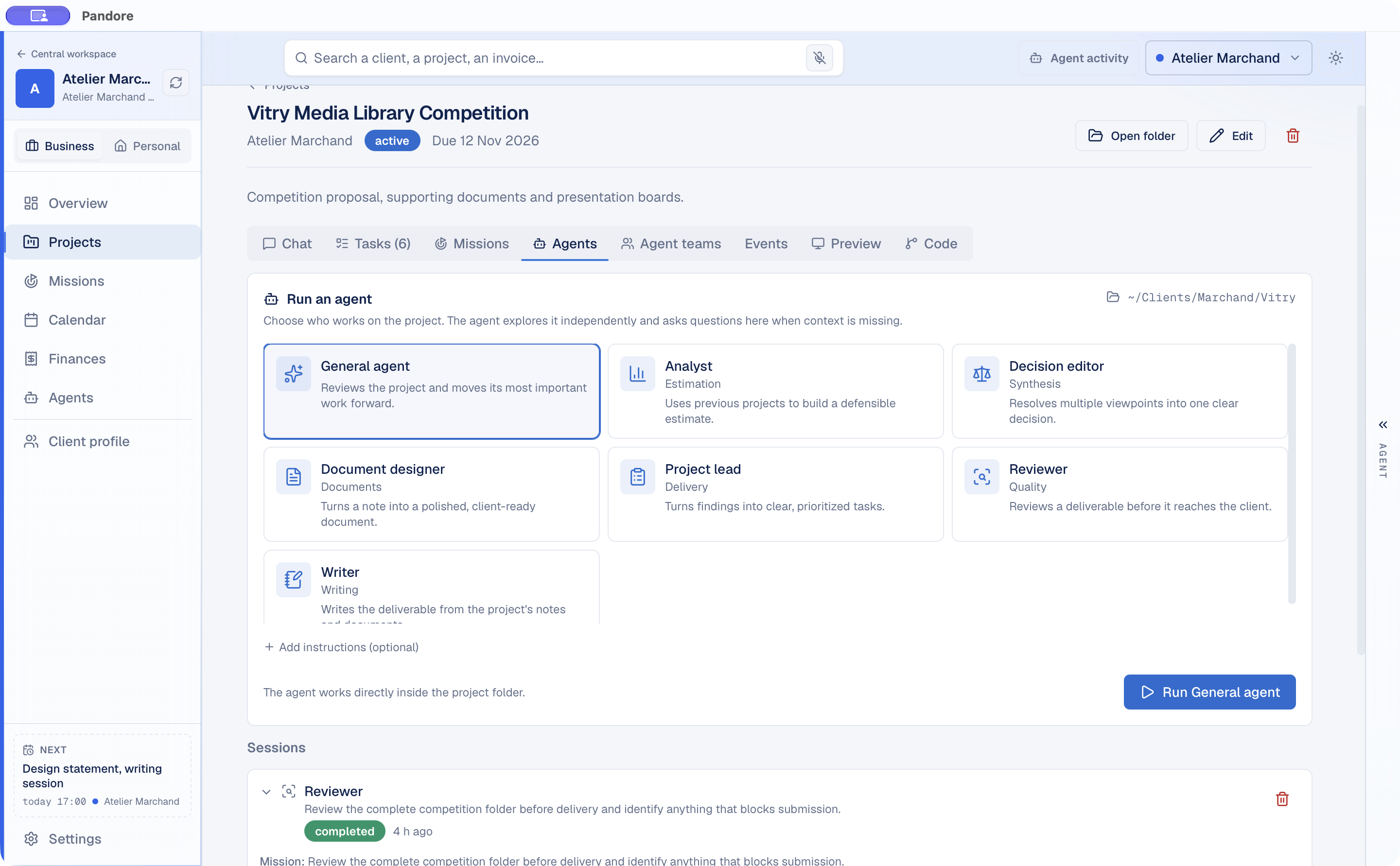
In Pandore, agents you call together in the chat work in turn. A saved agent team can run in parallel when you want independent readings.
Which one to use
| Situation | How to run it | Why |
|---|---|---|
| Write a draft, then review it | In turn | The review needs the draft |
| Make two changes to the same file | In turn | Edits made at the same time collide |
| Draft the client email and list the next steps | In turn | The next steps can build on the email |
| Review a draft for errors and check its figures | In parallel | Two independent readings of the same file |
| Get two opinions that must not influence each other | In parallel | Neither agent sees the other's answer |
| Ask a quick question | One agent | A second run adds usage, not insight |
A simple test: if the second person would ask to see what the first one did, run them in turn. If you could give the two tasks to two people who never talk to each other, and you want it that way, run them in parallel.
Call several agents in one message
In Pandore, this happens in the project chat. Agents are roles with their own instructions: built-in ones such as Reviewer, Writer, Analyst, Project lead, Decision editor and Document designer, plus any you create yourself. Naming several in one message forms a team, for that message. A team you saved answers to @ in the same way: type its name, and all its members are called.
- 01Open the project chat
Open a project linked to its folder and go to the Chat tab. The agents you call will work in that folder.
- 02Type @
A list of agents opens, with each one's name and role. Keep typing to filter (accents and capitals do not matter), then press Enter or Tab. The @ button next to the field does the same.
- 03Name more than one
Write one message that calls each agent and says what you want from each: "@Reviewer look for errors in proposal.md. @Analyst check every figure in it against budget.csv." Under the field, Pandore shows "Agent team" and the names, in the order they will answer. A misspelled name shows up here before you send.
- 04Send
Each agent gets its own bubble, signed with its name and marked "agent", and writes into it when its turn comes. The stop button stops the whole team, including those still waiting.
Behind the scenes, each agent runs as a separate process, one after the other, in the order you named them. It receives its role's instructions, the same project context as the chat, the conversation up to your message, and the answers of the teammates who went before it. It is told that it is part of a team for this message, to build on what has been done rather than redo it, and to leave each teammate their own part.
One detail is worth knowing. The general chat does not answer a message addressed to named agents: you asked specific agents, so only they reply.
Give each agent a distinct job
Two agents with overlapping briefs produce two similar answers and twice the reading. Before calling several, check that their jobs do not overlap: one looks for errors, one checks numbers, one writes. If the built-in roles do not fit, create your own, with instructions that say what it produces and what it should refuse.
Each agent can also carry its own model in its technical settings, and that model takes precedence over the one in Settings. A quick check and a long draft do not have to run on the same model.
Run a team in parallel
When you want answers that cannot influence each other, create an agent team and set it to run in parallel. Call it by its name with @ in the chat, or start it from the Agents screen on the project of your choice. Its members start together, and an optional synthesis agent can gather their answers into a single result.
Keep two agents out of the same file
This is the main risk of parallel work in a shared folder. Team members work in the project folder, with the permissions you chose in Settings: read only, may change files, or may run commands. A folder does not stop two programs from writing the same file at the same moment. One version overwrites the other, and part of the work is lost. Set things up so the question never comes up:
- Give each agent its own output file. Say where each one writes: the email in drafts/email.md, the findings in notes/figures.md. Separate files cannot collide.
- Ask reviewers for a report. "List the problems, do not change the file." You apply the changes afterwards, or hand the list to one agent.
- Use read only when you only want opinions. If a session is only about analysis, the read-only permission in Settings rules out edits altogether.
- Check what changed before you build on it.
Agents you call with @ do not have this problem: they work one after the other, so one never writes over a file while another is writing it.
If you plan to let agents edit, it also helps to know what is in the folder before they start. A first pass with a single agent, as in reviewing a project folder with an AI agent, gives you that map.
Read the answers
Agent answers are easy to tell apart from the rest of the conversation: each bubble carries the agent's name, its icon in a square tile and a colored edge, while the general chat keeps a round icon. Read them in this order:
- Disagreements first. Where two agents contradict each other is where your judgment is needed.
- Questions next. Each agent is told to dig into the context itself and, only if something is really missing, to end with numbered questions. Answer them in your next message.
- Overlaps last. If two agents said the same thing, their jobs overlap. Adjust the roles or your request before next time.
To explore one agent's direction without cluttering the thread, use "Branch from here" on its answer. Pandore creates a new conversation with the history up to that point, and the original thread stays as it was.
Follow up with the general chat
Once the agents have answered, there are three ways to continue.
Ask the general chat to merge. Send your next message without @. The general chat receives what the agents said since its last answer, each part signed with the agent's name, so you can write: "Merge the Reviewer's and the Analyst's points into one list of changes, most important first."
Call the next agent. Name one more agent. It sees the earlier answers in the conversation, so "@Writer apply the Reviewer's list to proposal.md" works without copying anything.
Queue the next step. While agents are still answering, pressing Enter adds your message to the queue instead of interrupting them, and the line under the field says who it is queued for. You can reorder or edit queued messages before they go.
For a combination you use often, save it as an agent team: the Agents screen starts it on any project, in turn or in parallel, with an optional synthesis agent at the end.
Follow background work in Agent activity
Agents you call with @ answer in the chat itself. Longer work runs in the background: sessions you start from the Agents screen, agent teams and Missions. You can start one session, then another, and both work in the project folder at the same time. They keep running if you close the window.
The Agent activity button shows how many agents are working, and on how many projects. It opens a panel grouped by project, covering the last 24 hours: what is running, what needs you, what has finished or failed. Select a session to follow its output live, stop it, or open its project.
Usage stays visible as well. Each answer records the usage its agent reports, and the AI usage dashboard breaks it down by agent, so you can see what calling three agents instead of one actually used.